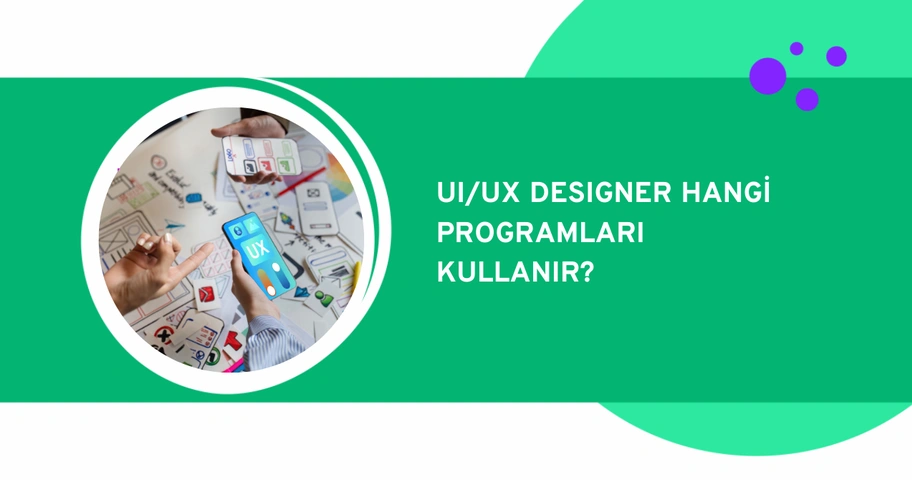




What draws a user to a product repeatedly? How do you design a product that both looks great and gives the user a flawless experience? 🧐 These questions form the basis of user interface (UI) and user experience (UX) design.
User interface (UI) and user experience (UX) designers play a significant role in achieving this goal by utilizing various powerful tools and techniques.
Whether you're designing a user-friendly website or working on a product, we've compiled the best UI and UX tools that will take your design process from "adequate" to "excellent". Happy reading.
What is the Difference Between UI and UX?
UI (User Interface) focuses on the layout of the site. You can consider graphics, visuals, colors, buttons, menus, and all branding elements as part of the user interface.
UX design, on the other hand, focuses on the overall interaction between the user and the site. Navigation, layout, loading speed, and interaction are all important user experience metrics. If you want to explore the difference between UX and UI in more detail, we recommend checking out our article on the differences between UI/UX.
The Best UI/UX Design Tools
1. Figma
Figma deserves to be at the top of this list. 👑 Figma is one of the most widely used UI/UX design tools on the market.
Actually, there's a good reason for this; it's versatile and its interface is very designer-friendly. It's especially easy to learn for beginners.
Figma is a browser-based interface design tool that empowers a workflow of fast design, prototyping, and collaborative work.
So, what do we mean by collaborative here? Figma allows multiple users to make changes to the design simultaneously without downloading files. By receiving instant feedback at every stage of the design process, it enables teams to progress faster.
With its prototyping feature, Figma offers designers the opportunity to test all the details of their sites, edit them, and foresee how users will interact. In other words, you create a guide for the developer by designing where everything will be, how it should look, and its functions for websites, mobile applications, and various software.
If you're looking for a versatile tool that covers everything from the idea stage to interactive prototyping, Figma will be an excellent choice.
✅ Key Features of Figma
- Offers the ability to create interactive prototypes with advanced editing and Boolean commands like subtracting, combining, and intersecting.
- Has the feature to copy and paste your designs from FigJam directly into Figma after brainstorming sessions.
- Provides easy access to iOS and Android design features, assets, and CSS codes.
- Facilitates team collaboration by connecting with design tools like Adobe Photoshop and Sketch.
- Offers the ability to work and comment simultaneously.
- Includes ready-to-use assets that can be utilized through drag and drop.
- Has an Auto Layout feature providing easy use for responsive design.
2. Sketch
Sketch is a powerful user interface design tool. It's a vector-based design tool. Although it's vector-based, you can also work in pixels in Sketch.
Sketch allows designers to size, position, and align user interface elements. One of its most important features is providing real-time collaboration.
When we asked designers, we received descriptions like "practical, stable, fast, and designer-friendly program" about Sketch.
We mentioned that Sketch works with vectors. It also has plenty of useful tools. The ready-made artboards and templates that come within itself speed up your work considerably. In addition, you can quickly get codes like CSS for your website design you've prepared. Especially once you get used to the shortcut feature, it becomes an indispensable application. 👌
For a long time, it has been an application recommended for both beginners and advanced designers. However, Sketch can be used only on macOS. Therefore, it's not a suitable tool for Linux and Windows users.
✅ Key Features of Sketch
- Creates scalable designs for every screen size with customizable grids and simple sizing tools.
- Provides shortcuts to speed up the design process.
- Unlimited control over interface typography.
- Allows instant collaboration, feedback, sharing, and developer handoff with cross-platform tools.
- Offers workflow support for wireframing, prototyping, and illustration design.
3. Adobe XD
Adobe XD is a user interface design tool used to create product prototypes, mobile applications, and website designs.
Designers describe it as "an excellent application in terms of ease of use".
Using Adobe XD, you can create websites, Android, and iOS mobile applications. In the 'design' section found in the application's interface, you will find drawing tools. Using this section, you can color the shapes you draw as you wish.
Like other tools used in UI/UX design, Adobe XD also has a prototyping feature to test everything and debug before publishing.
Adobe XD is a cloud-based tool. This means that users can easily access Adobe XD through any browser. It could be a logical choice for designers who use tools like Illustrator and Photoshop.
Since it's part of the Adobe family, if you're familiar with Adobe applications (Illustrator and Photoshop), you won't believe what you can do.
✅ Key Features of Adobe XD
- Provides transformation of complex designs into 3D objects and information transfer between artboards.
- Can transform static prototypes into working designs with micro-interactions thanks to the auto-animate feature.
- Can duplicate headers, footers, and other repeating content over multiple artboards.
- Offers access, sharing, and collaboration from anywhere by saving projects to the cloud.
- Easily compatible with other Adobe applications.
- Creates depth and perspective simulation in designs.
- Provides ready components for platforms like Apple Design, Google Material Design, and Amazon Alexa.
4. Balsamiq
Balsamiq is another UI/UX tool. It focuses on wireframes. Balsamiq offers the ability to link data together, create presentations, and test prototype versions of designs.
By dragging and dropping elements onto the platform, it helps to create a complete sketch-style map.
It is possible to integrate Balsamiq with Google Drive and other cloud-based platforms. Thus, multiple users can access the project even if they are not in the same office.
✅ Key Features of Balsamiq Tool
- Basic mockups can be quickly created thanks to its user-friendly interface.
- Speeds up the design process with easy drag and drop of components.
- Includes ready-made user interface components like buttons, menus, and forms.
- Presents sketches with minimal visuals, allowing for general design-focused work without getting bogged down in details.
- Allows teams to share projects and receive feedback.
- Ease of use with both desktop and cloud-based versions.
- An ideal structure for designers and beginners due to its ease of use.
5. Framer
Framer (formerly known as Framer X), is a tool used to create prototypes. It is said that prototypes made with Framer are the closest version of a prototype to the final product.
All visuals can be created within the program with Framer. Framer has another standout feature: accessibility from mobile devices.
In addition to macOS and Windows, it also works on iOS and Android. It's a great feature for designers who prefer to work with tablets.
✅ Key Features of Framer
- Offers a structure suitable for both professionals who like to code and those who want to design without code.
- Helps create realistic prototypes with advanced animations, micro-interactions, and transition effects.
- Dynamic and reusable design elements can be created using React components.
- Provides a broad library of templates and user interface components that speed up the start.
- Can evaluate user experience by instantly testing prototypes on devices or browsers.
What Other Tools Do Designers Need in Their Toolkit?
Yes, we've come to the end of our list. Of course, this list doesn't consist of just 5 tools. While most of the design tools we've listed here serve as end-to-end design platforms, there are many more tools dedicated to specific tasks and stages of the design workflow. We've left the list of these tools here 👇
- Origami Studio: Visual design and prototyping tool
- Proto.io: High-fidelity prototyping and design tool
- FlowMapp: Prototyping tool
- UXPin: High-fidelity prototyping and design tool
- Wireframe.cc: Low-fidelity wireframing tool
- Webflow: Visual design and design-to-code tool
- JustInMind: Visual design and prototyping tool
- Miro: Visual design and wireframing tool
- Mockflow: Wireframing tool
- ProtoPie: Visual design and prototyping tool
- Lucidchart: Visual design tool for design thinking
- Zeplin: Visual design and prototyping tool
- Marvel: Prototyping tool
- Axure RP: Prototyping tool
If you want to succeed in the field of UI/UX, you should have the right balance of skills like mastering design tools and possessing strong communication skills.
Are you ready to step into this field? Even if you don't have experience, UI/UX Bootcamps' or register for our Technology Schools programs