





File compression is an important element of the digital work environment. With file compression, we can send more data very quickly. In fact, the reason Zip files are such a popular tool for companies and users is entirely because of this speed. 🗃️
Zip file is a common file format used to compress one or more files together.
It reduces the overall size of the file, making it easier to transfer or store them. The recipient can then open the Zip file after the transfer and, if desired, store the files in their original form.
We would also like to mention that no data is lost when the Zip file is opened. So there's no need to worry about your files getting corrupted or lost. 🤐
Zip files work almost the same way as other folders on your computer. They combine data and files in one place. The difference here is that the content is compressed, and the amount of data your computer uses is reduced.
You might be wondering how to identify if a file is a Zip file. The answer is very simple. Every file name has an extension at the end. For example, PDF files end with the .pdf extension. In the case of Zip files, you can see the .ZIP or .zip extensions.
In summary, if you need to reduce the size of one or multiple files, you can use the Zip file format.
While explaining when you can use a Zip file, we also explained below how you can create a Zip file. 👇
How to Compress Files? How to Create a Zip?
The process of compressing files varies depending on the operating system or platform you are using. However, creating a Zip file is quite simple in any case.
Creating a Zip File on Windows
1. First, find the files or folders you want to combine in the Zip file. Select the files you want to compress.
If you want to compress all files in one location, you can use the Ctrl + A keyboard shortcut to select all.
If they are not in one location, hold down the left mouse button and drag over the objects you want to select. A light blue box will appear around the selected items, as seen here.
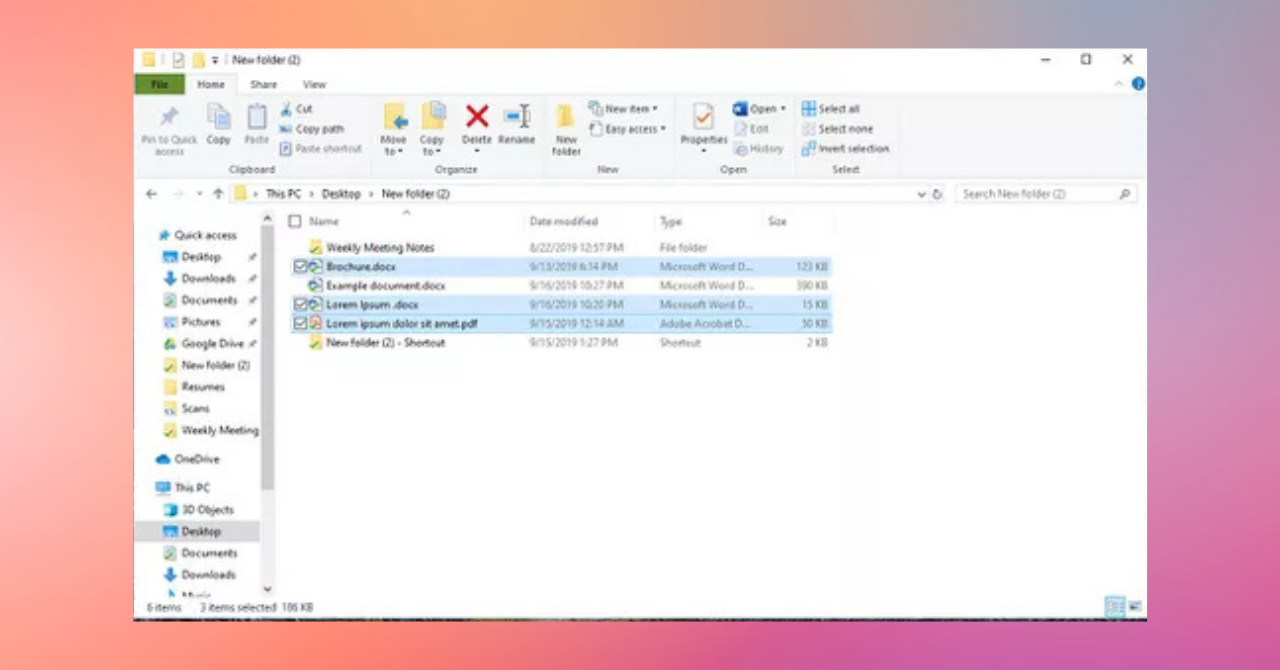
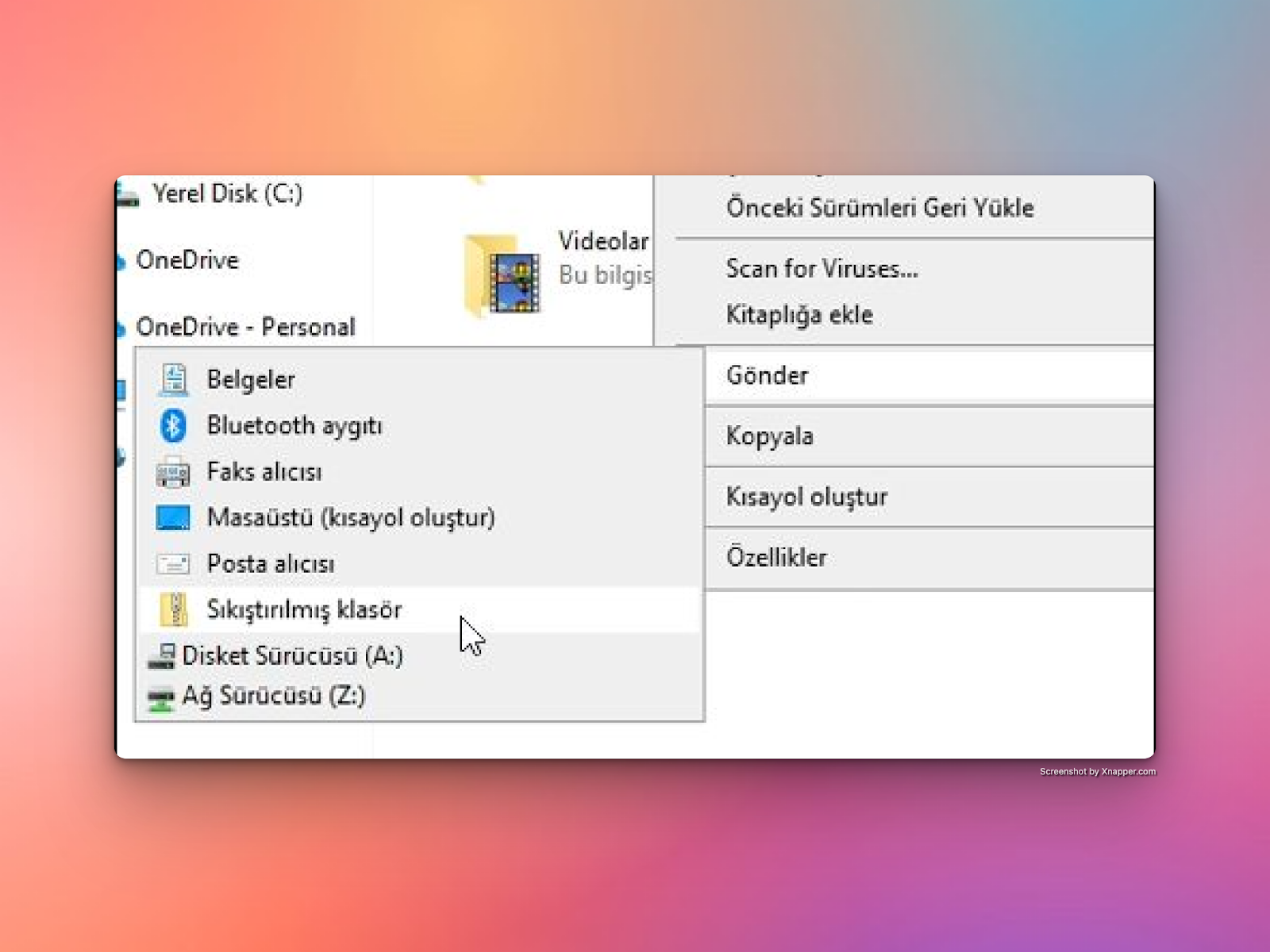
2. Once your files are selected, right-click to bring up the options menu. Click on the “Compressed folder > send” option.
✍️ If you want to add more files to the archive after the Zip file has been created, simply drag the files over the Zip file.
3. When you compress the files, you will see a new folder with a large zipper icon next to the original file. This means you have compressed the files. You can leave its name as is or rename it as you wish. To do this, right-click on the Zip file and select the “Rename” option.
Creating a Zip File on Mac
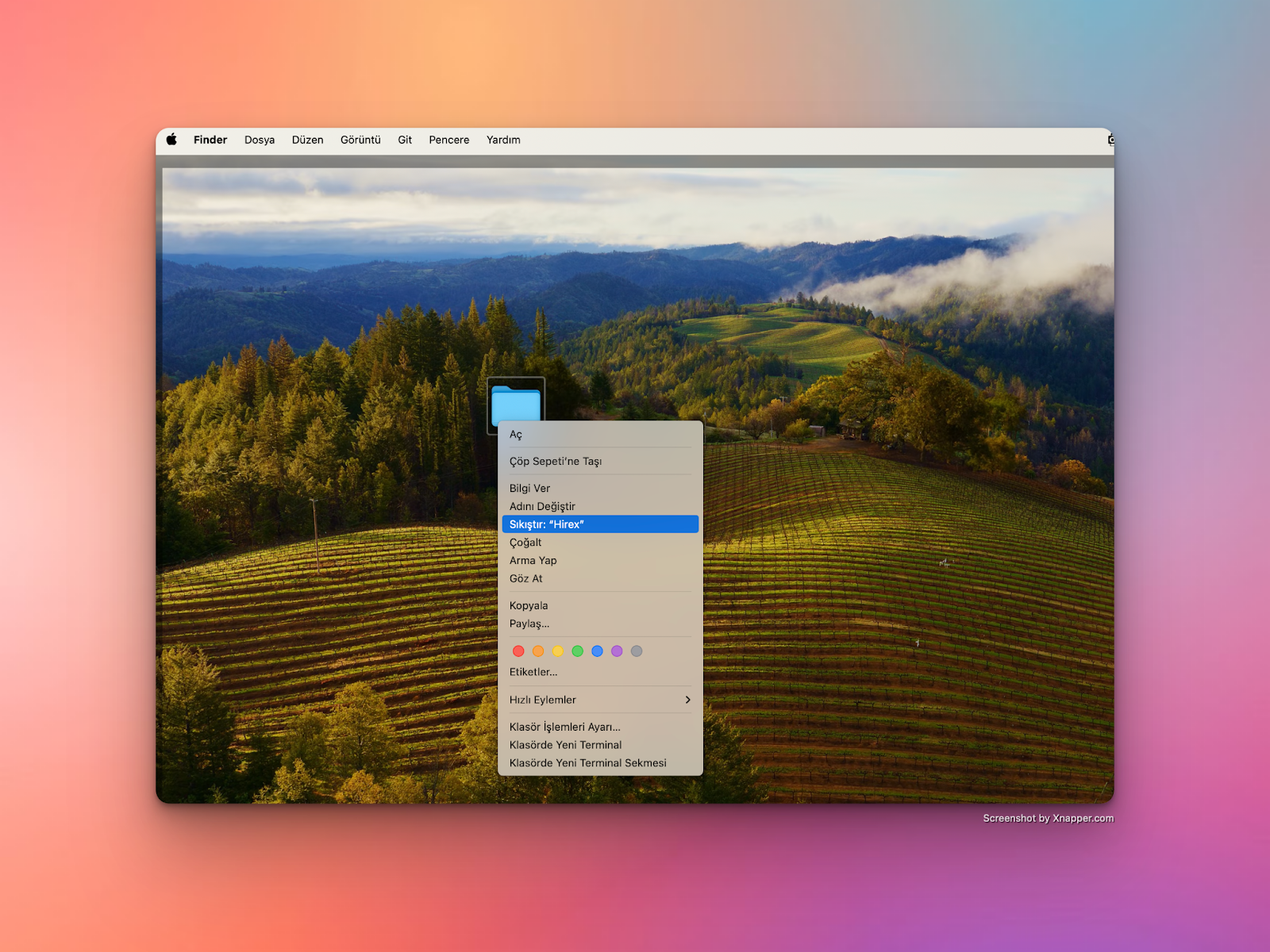
- Click on the Finder icon on your Mac computer.
- Right-click on the file or folder you want to compress (you can also Control-click).
- From the menu that appears, select the Compress option.
- You can find the newly created Zip file in the same location as the original files or folders. This file will be named Archive.zip by default, so you might want to rename it.
How to Open Zip Files?
In the above section, we explained how to create Zip files. In this section, we will explain how to open Zip files that we have created or that have been sent to us.
Whether you use a phone, Windows, or Mac, you do not need special software to open a Zip file. It's a very simple process.
Opening a Zip File on Windows
- Select the compressed file and right-click.
- Select the “Extract All” option.
- This will open the Zip file. If you want, you can also drag the contents to another folder using your mouse.
Opening a Zip File on Mac
To open a zip file on Mac, double-click the zip file. This will extract the compressed files, files, or folders to the same location as the archive.
Opening a Zip File on Android
On an Android phone or tablet, you can open a file using Google’s own “Files” app. In most cases, this app comes pre-installed on the device. However, if not, you can quickly download this app from the Google Play Store.
Then, find the compressed file in the files and tap once. You will see a confirmation box on the screen to extract the file. After tapping “Extract”, you can browse your compressed files, it’s that easy.
Opening a Zip File on iPhone
Opening files on an iPhone is extremely quick. Go to the folder in the Files app that contains the Zip files, then just tap the file. You will see a new folder named something like Zip.
Opening a Zip File on Linux
Extracting files on Linux is quite simple. You can use the 'gunzip' command for 'gzip'' files, the 'tar' command for 'tar.gz'' files, and the 'unzip'' command for 'zip'' files.
- gunzip filename.txt.gz
This command opens the 'filename.txt.gz' file as 'filename.txt'. - tar -xzvf archive_name.tar.gz
This command extracts the contents of the 'archive_name.tar.gz' file into the current directory. - unzip archive_name.zip
This command extracts the contents of the 'archive_name.zip' file into the current directory.
But what if you're still having trouble opening the Zip file even after trying these instructions? 🧐 In this case, you can click on the links https://extract.me/ and unzip-online.com to extract Zip files online for free.
When Are Zip Files Used?
We often need compressed files. These files have a lot of use cases.
Let’s assume you need to send a large number of files to a client or coworker. You might want to send them all at once as a single attachment, but the file size may exceed the allowed maximum. In this case, you might receive an error message.
The solution to sending all files in a single email is to compress them and attach this Zip file to your email. The recipient can then download the file and open the compressed file by clicking on it. We also explained how to open the Zip file in the above section. 👆
Another benefit of Zip files is their storage and organizational capabilities. If you have many files that you don't plan to use in the near future, you can zip them all into a single file. This will reduce their sizes and organize them into a single file that is easy to find and use.